How-to
How to export transcripts: TXT, SRT, VTT, JSON, and CSV
A transcript on your phone often needs to end up somewhere else: a document, a subtitle track, a spreadsheet, or another tool. Fieldnoter exports in five formats, and the only real question is which one fits the destination. This guide covers the four steps to export and a short table on when to reach for each format.
In this article
Open a transcript
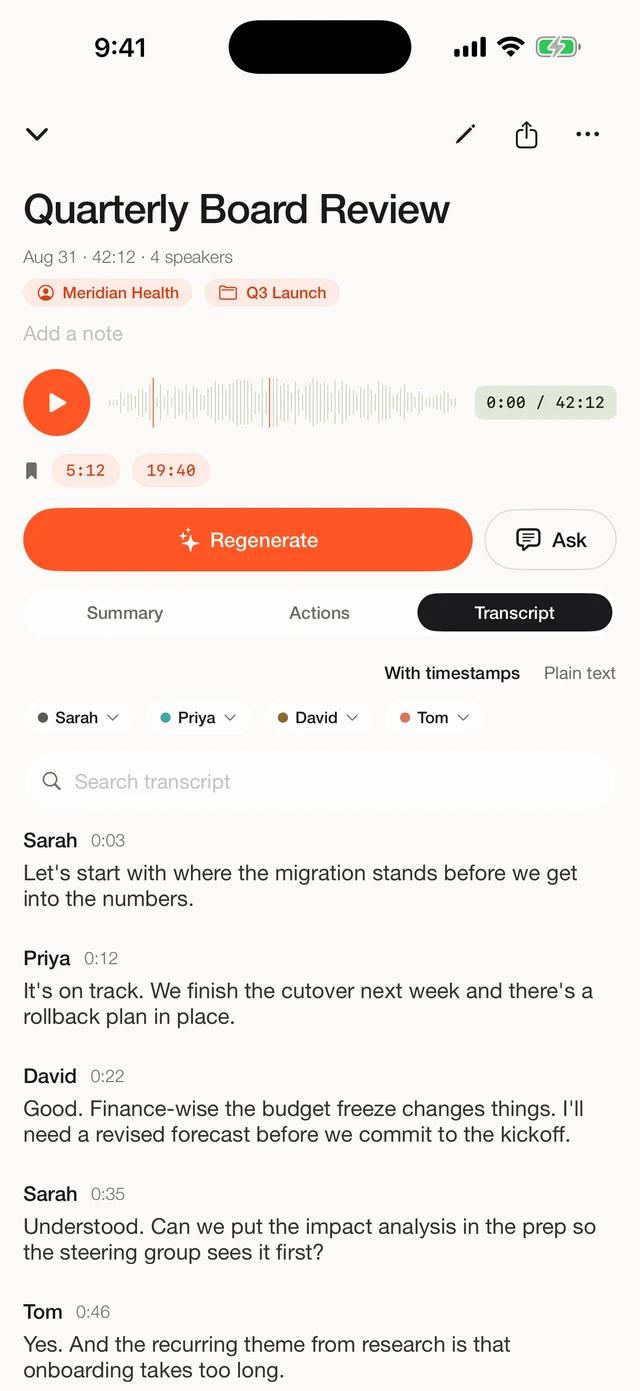
From your library, open the recording you want to export. Any speaker names you set and the segment timestamps travel with the export, so it helps to name the voices first if you plan to share the file with someone else.
Tap the share icon
Open the share control on the transcript. This is where export lives, next to the option to share the summary on its own. Everything happens on the device up to the moment you choose a destination, so nothing has left your phone yet.
Choose a format
Pick the format that matches where the transcript is going. Here is what each one is for.
| Format | Best for |
|---|---|
| TXT | Plain text for reading, notes, and pasting into a document. |
| SRT | Subtitles and captions, the common format most video tools accept. |
| VTT | Captions for the web and video players that expect WebVTT. |
| JSON | Structured data for another tool, with timecodes on every segment. |
| CSV | Spreadsheets and analysis, one row per segment. |
If you are unsure, TXT is the safe default for reading and JSON is the one to pick when a developer or another app asks for the structure.
Send it where it needs to go
Once you choose a format, Fieldnoter hands the file to the standard iOS share sheet. From there it goes wherever you send it: save to Files, attach it to an email, or open it in another app. The transcript only travels to the destination you pick, so a local save keeps it on the device.
In the app
One transcript, five formats
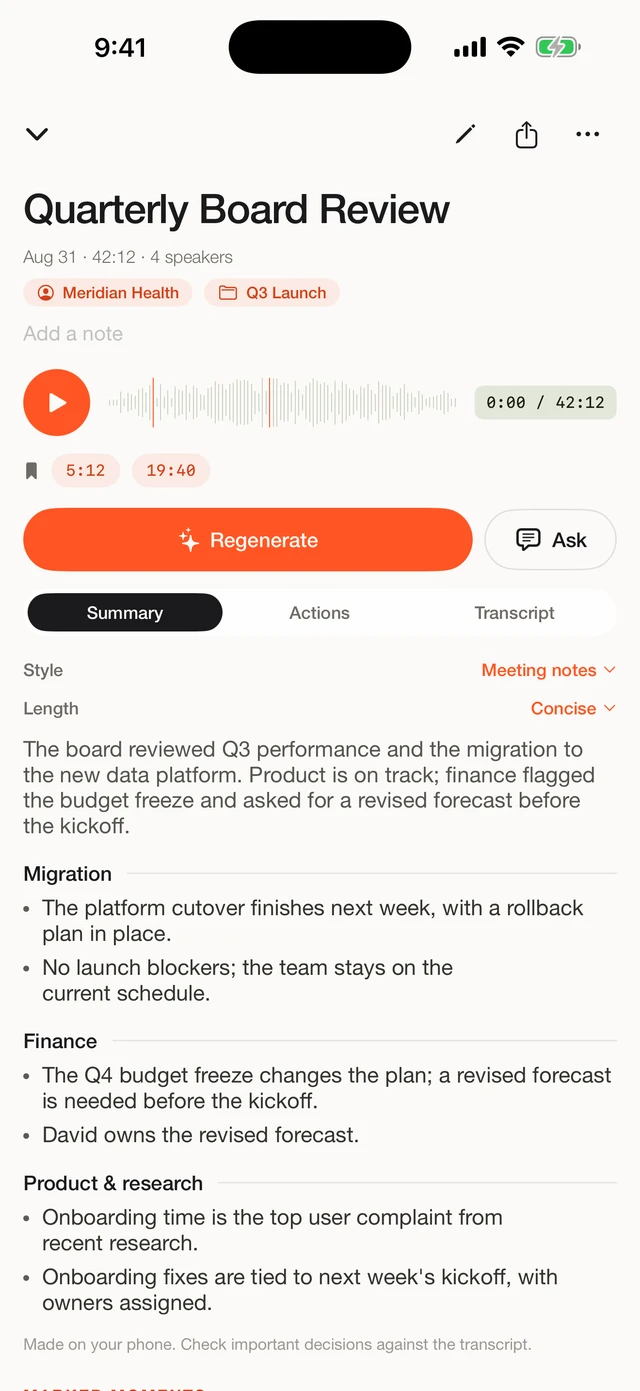
Open a transcript, tap share, and choose the format that fits. Speaker names and timestamps come along in each one.
Frequently asked questions
Which format should I pick?
Pick by where the transcript is going. TXT for plain reading and notes, SRT or VTT for subtitles and captions on video, JSON when another tool needs the structure with timecodes per segment, and CSV when you want the segments in a spreadsheet. The table above lays this out.
Do exports include speaker names and timestamps?
Yes. Any names you gave the speakers and the segment timestamps are carried into the export, in the way each format allows. SRT and VTT use timecodes for captions, while JSON and CSV keep a time value on each segment.
Does exporting send my transcript anywhere?
Only where you send it. Export hands the file to the iOS share sheet, and it goes to whatever you choose there, such as Files, Mail, or another app. Fieldnoter does not upload the transcript on its own, and if you pick a local destination it never leaves the device.
Can I export just the summary?
Yes. You can share the summary and action items (early access) as text on their own, which is handy for a quick recap in an email or a note. When you need the full detail, export the transcript in one of the segment formats instead.