How-to
How to label speakers in your transcripts
Fieldnoter separates the voices in a recording on its own, so a fresh transcript already reads as Speaker 1, Speaker 2, and so on. That is enough to follow who said what, but a real name reads better and carries into your summary and exports. This guide shows how to name each voice, correct a segment that was labeled wrong, and check that the name follows through everywhere.
In this article
Open the transcript
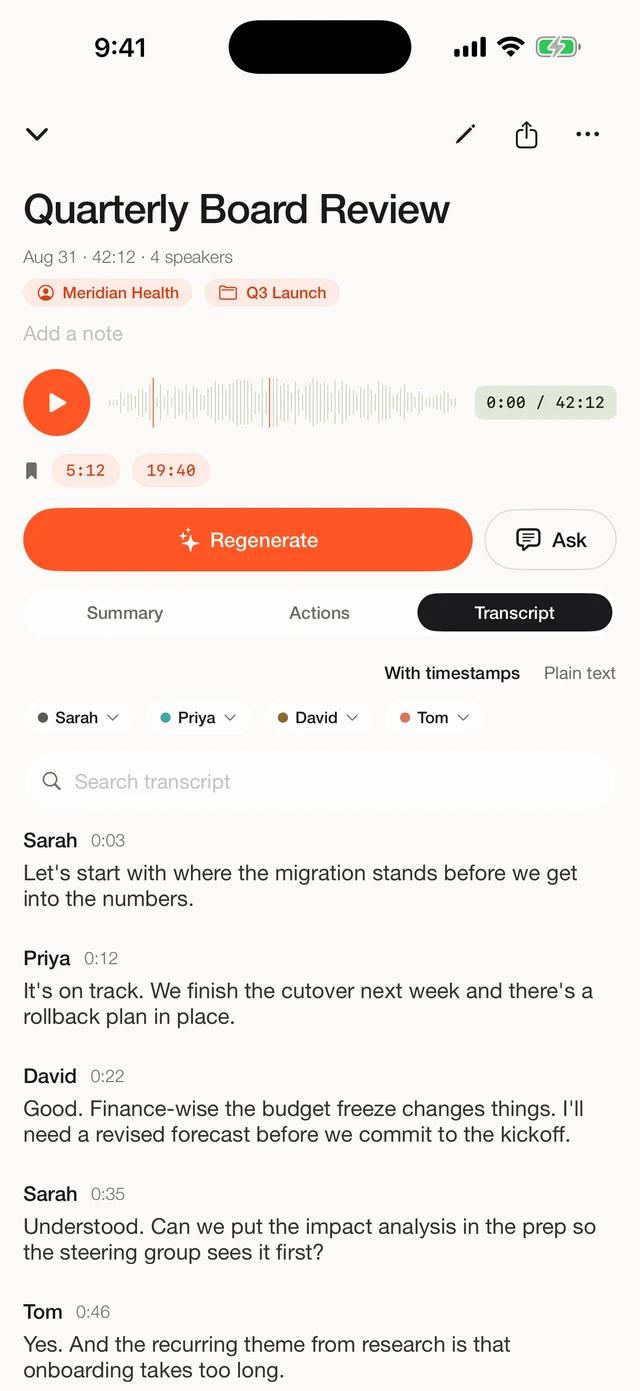
From your library, open the recording you want to work on. Each transcript is a list of segments with timestamps, and every segment already carries a speaker label such as Speaker 1 or Speaker 2. Fieldnoter assigned those automatically while it processed the audio, so there is nothing to switch on first.
Tap a speaker label
Tap the colored label on any segment for the voice you want to name. Fieldnoter selects that speaker across the whole recording, not the single line you tapped, so you name each person once rather than segment by segment. The matching color dot makes it easy to see where that voice appears.
Give the voice a real name
Type the person's name and confirm. Every segment for that speaker updates at once, from Speaker 1 to, for example, Sarah. Repeat for each voice in the conversation. Names are stored on the device with the rest of the transcript, so nothing about who spoke leaves your phone.
Fix a mislabeled segment
Automatic speaker separation is good, but it is not perfect. On audio with cross-talk or a quiet speaker, a segment can land under the wrong voice, or one person can be split across two labels. This is normal, and it is quick to correct. Open the segment, tap its label, and reassign it to the right speaker. The fix holds for that segment while the rest of your naming stays in place.
See the name flow through summaries and exports
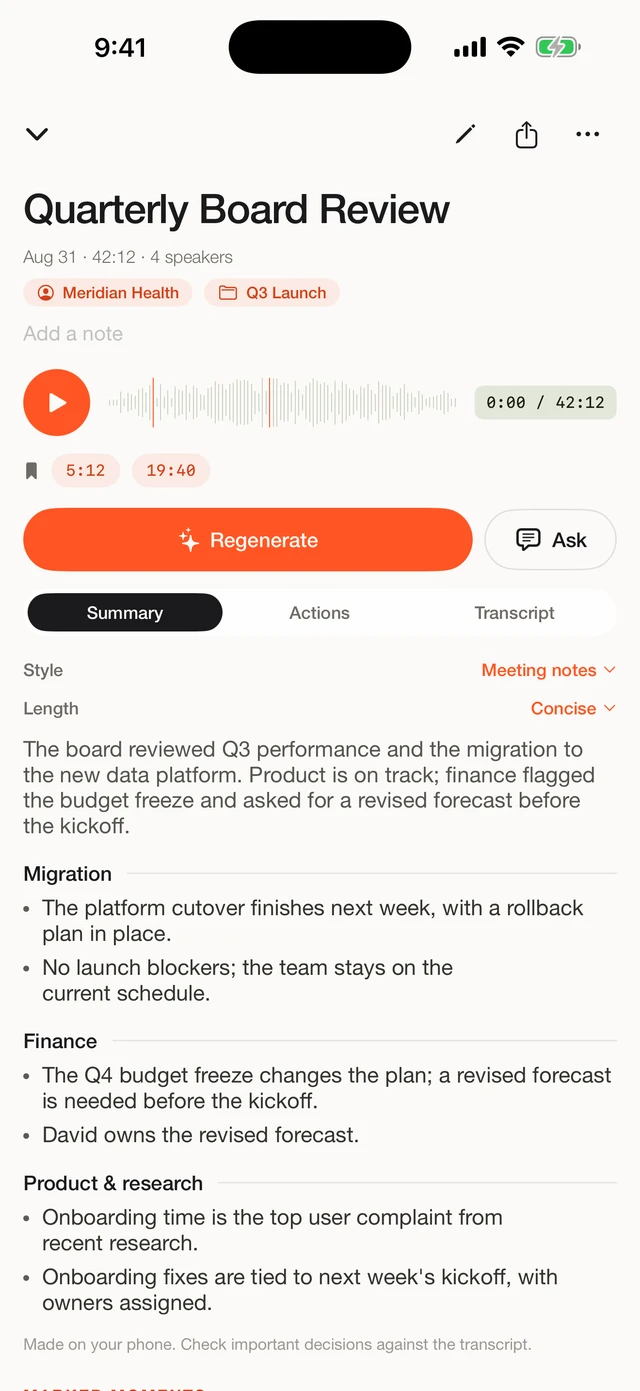
Once a voice has a name, that name is used everywhere the transcript is. The on-device summary and action items (early access) refer to people by name, and every export that carries speakers, from TXT to JSON, uses the real name instead of a placeholder. Name a voice once and you do not have to touch it again.
In the app
From placeholder to real name
A finished transcript arrives with speakers already split out. Tap a label to name the voice, and the name carries into the summary and every export.
Frequently asked questions
Does Fieldnoter tell speakers apart automatically?
Yes. Fieldnoter separates speakers on its own using diarization, so a fresh transcript already shows Speaker 1, Speaker 2, and so on. This guide turns those placeholders into real names.
What if two people are labeled as one?
Diarization is not perfect, so two voices can end up under one label, or one person can be split across two. Open the segment, tap the label, and reassign it to the right speaker. Your correction holds for the rest of the transcript.
Do speaker names appear in exports?
Yes. Once you name a voice, that name is used in the transcript, in the summary, and in every export format that carries speakers, including TXT, SRT, VTT, JSON, and CSV.
How many speakers can it handle?
Fieldnoter handles conversations with several speakers. It works best when people take turns and there is little cross-talk, because overlapping voices are harder to separate cleanly. For a busy roundtable you may need to fix a few segments by hand.