How-to
How to get a summary and action items from a meeting
A transcript tells you everything that was said. Most of the time you want less than that: the decisions, the open points, and who agreed to do what. Fieldnoter builds a summary and a list of action items (early access) from a finished transcript, all on the device, and can push those actions straight into Reminders. This guide walks through it step by step.
In this article
Open a finished transcript
From your library, open a recording that has finished transcribing. A summary is built from the text, so the transcript needs to be complete first. If you have already named the speakers, those names carry into the summary, which makes the result easier to read.
Choose a template
Pick the template that matches the conversation. Fieldnoter includes templates for a meeting, a workshop, a one-to-one, an interview, coaching, and legal work. Each one shapes what the summary highlights and the kind of action items it looks for, so a coaching session and a legal intake produce notes in a fitting shape rather than a single generic format.
Generate the summary on the device
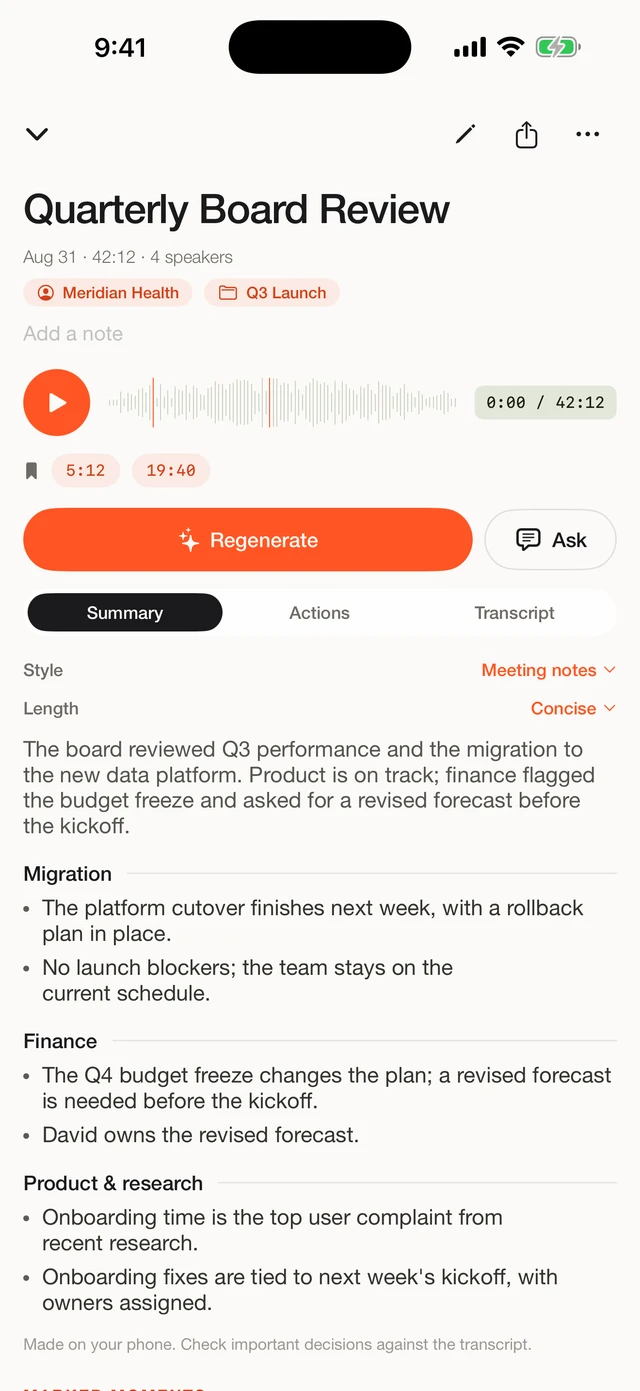
Tap to generate. Fieldnoter reads the transcript and writes the summary on your iPhone, using the Neural Engine. Nothing is uploaded, so this works in airplane mode as well. A longer recording takes a little more time, since the work happens on your phone rather than on a server somewhere.
Review the action items
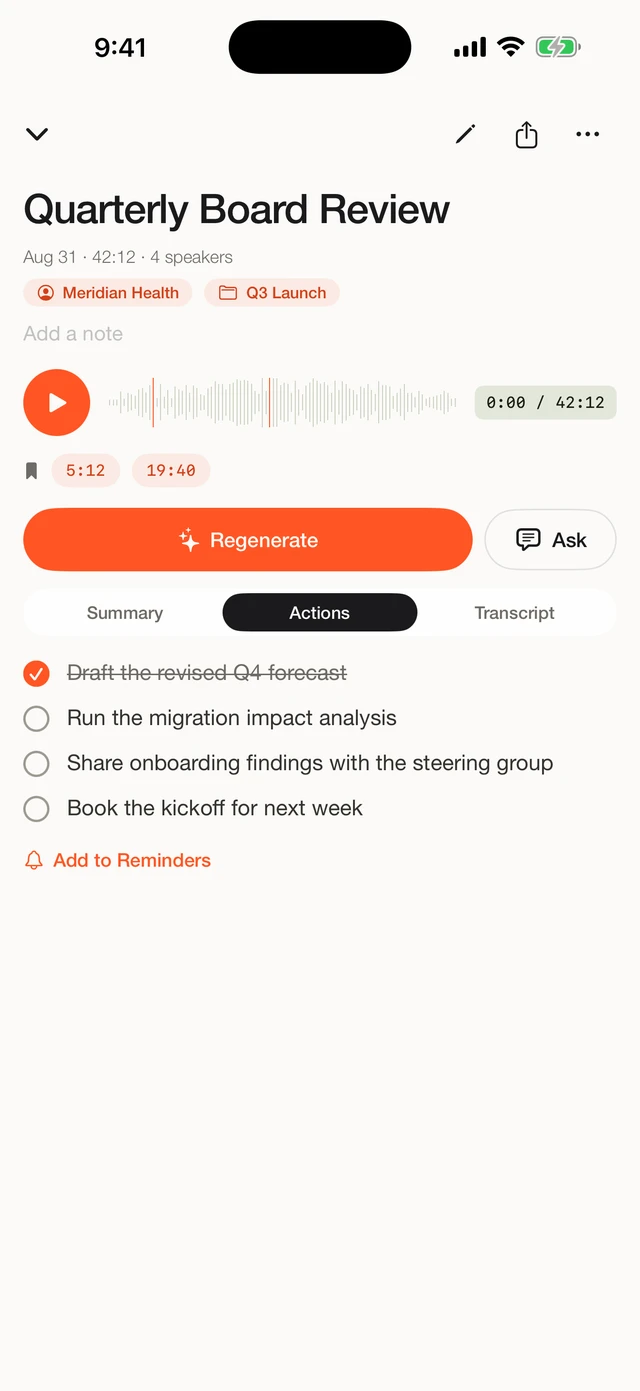
Action items are an early access feature and off by default, so first switch them on under Settings > Beta > Action items (early access). Alongside the summary you get a list of action items pulled from the conversation: the tasks, commitments, and follow-ups that came up. Read them over before you rely on them. The list is a starting point drawn from the transcript, so edit anything that is off and remove items that were never really agreed.
In the app
Transcript in, action items out
Open a finished transcript, choose a template, and Fieldnoter writes the summary and pulls out action items on the device.
Send action items to Reminders
When the list looks right, send the action items to Apple Reminders in a tap. From there they behave like any other reminder on your phone. Whether they sync across your devices depends on your own iCloud settings for Reminders, so the items follow the setup you already have rather than a separate sync from Fieldnoter.
Frequently asked questions
Is the summary made in the cloud?
No. The summary and action items are generated on your iPhone, using the Neural Engine. The transcript stays on the device, and you can generate a summary in airplane mode to see this for yourself.
Can I choose the summary style?
Yes. Fieldnoter offers templates for different fields, including meeting, workshop, one-to-one, interview, coaching, and legal. Each shapes the summary and the kind of action items it looks for, so a coaching note reads differently from a legal one.
Do action items sync to Reminders privately?
Action items are added to Apple Reminders, which then follows your own iCloud settings. If you sync Reminders through iCloud, those items sync the way the rest of your reminders do. If you keep Reminders local, they stay on the device. Fieldnoter does not add any sync of its own.
How accurate is the summary?
Treat a summary as a working aid rather than a record of its own. It is drawn from the transcript and can miss nuance or emphasis, so check anything important against the transcript itself before you act on it. The timestamps make it quick to jump back to what was actually said.